
Setting Up DialPad
Before we start: We need to determine if our operating system on our computer is 32 or 64 bits.
On your Windows computer, open the Start Menu:
1. Click on the Start button (Windows logo) in the bottom-left corner of your screen.
- Click on the gear icon to open the Settings app.
- In the Settings window, click on "System."
- In the left-hand menu, scroll down and click on "About."
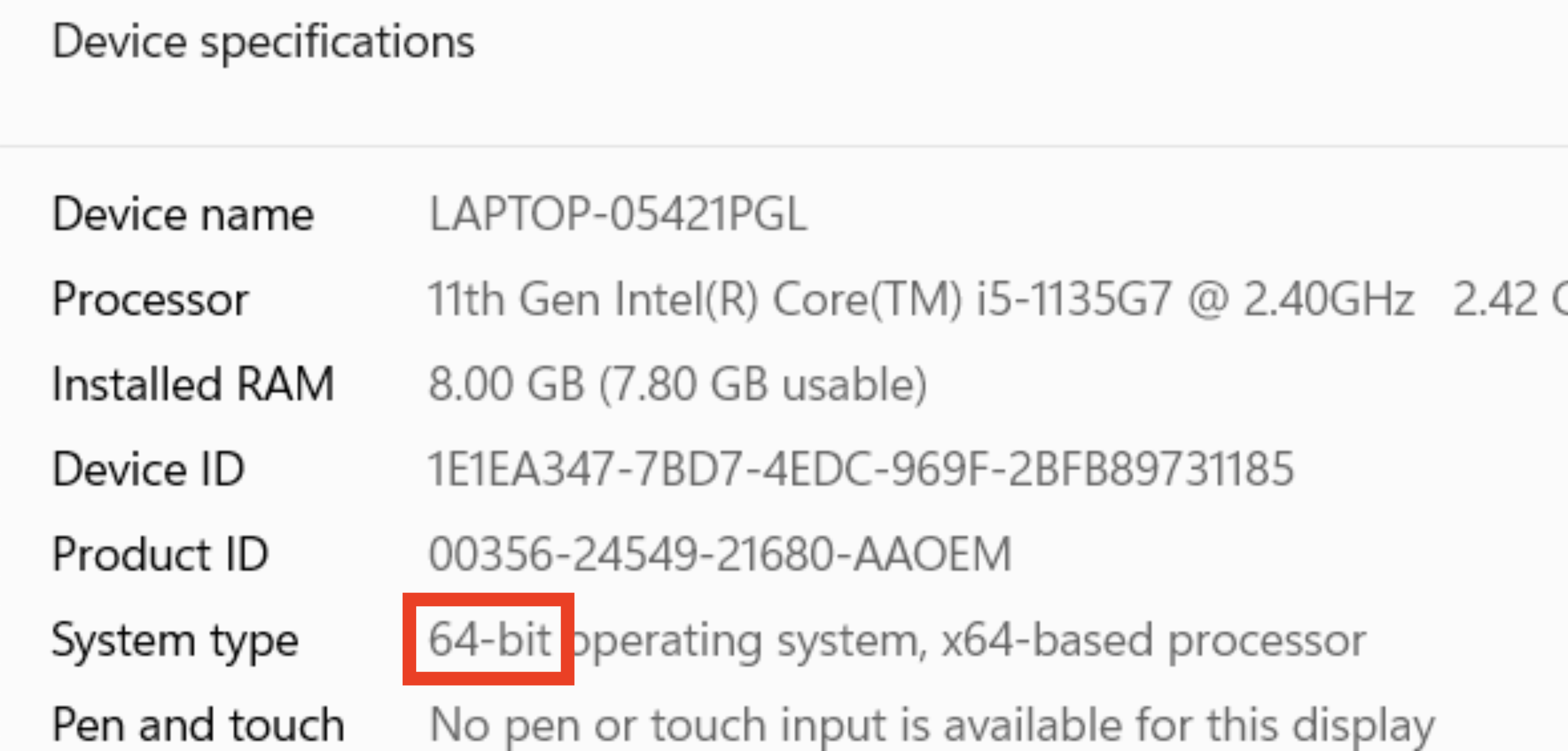
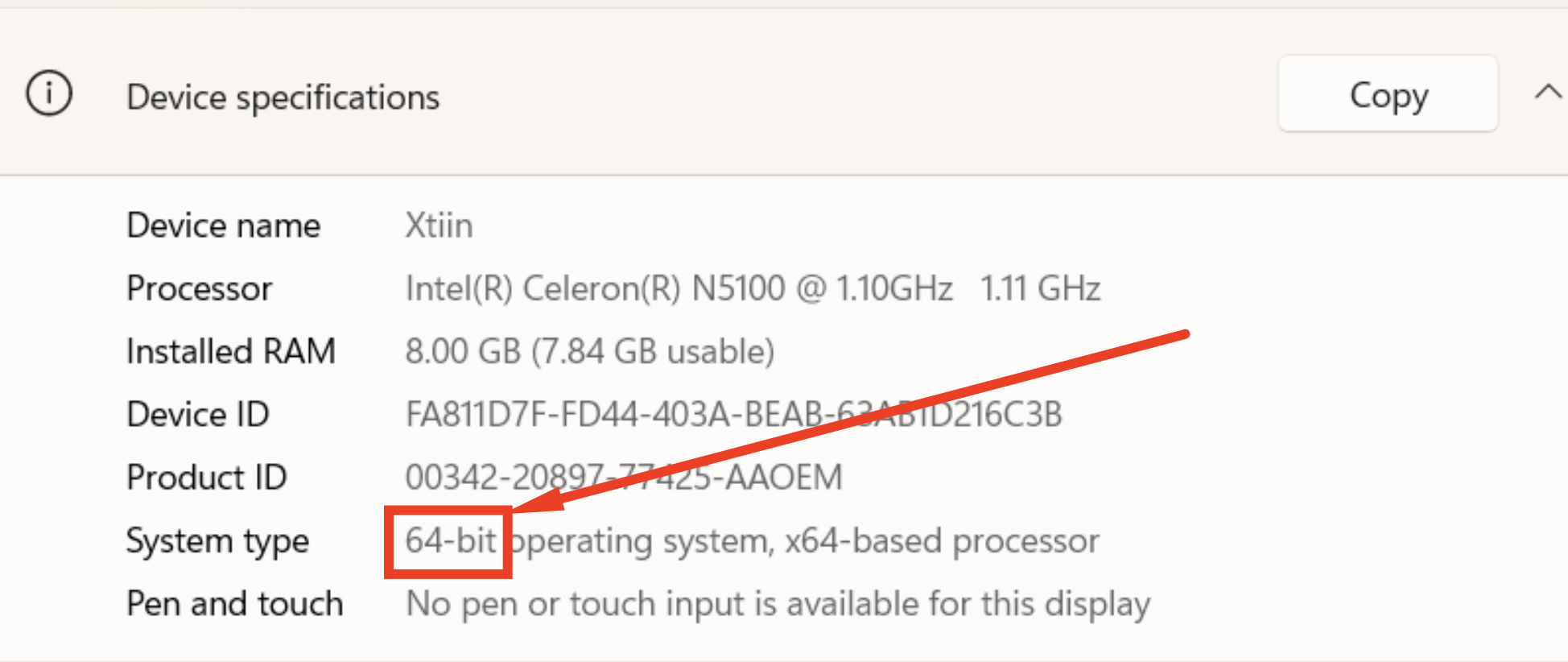
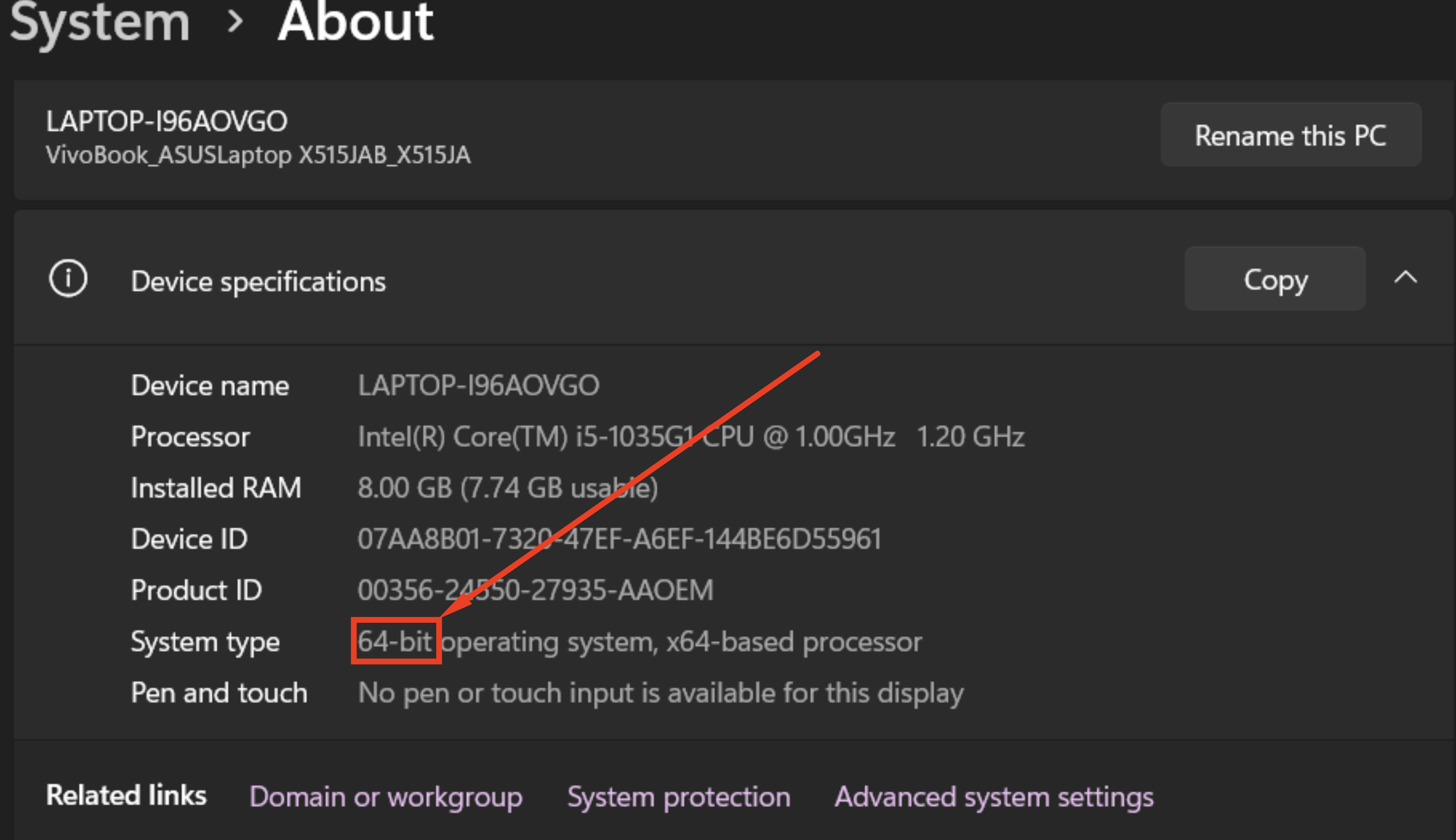
- In the "Device specifications" section, look for "System type."
- It will show either "64-bit operating system" or "32-bit operating system. (see image below)
You will need to remember which size bit you have for the next step.
Example 1
Example 2
Example 3
Example 4

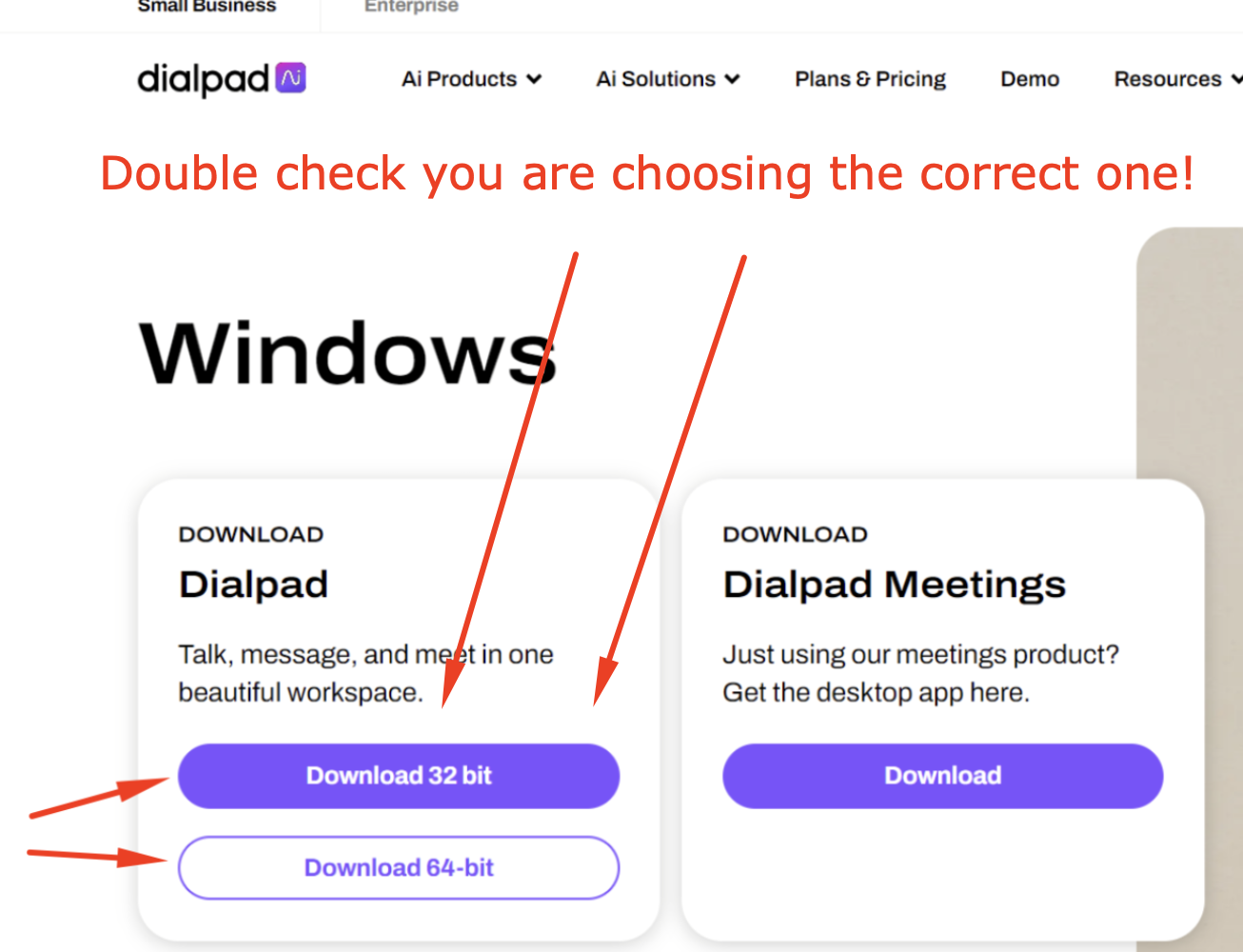
Step 1: Go to the DialPad website and download the Windows application with the correct bit size
Click on this link: https://www.dialpad.com/download/ and download the Dialpad app to your desktop
VERY IMPORTANT: If you have 32 bits then choose that or if you have 64 bits, choose that.
VERY IMPORTANT: If you have 32 bits then choose that or if you have 64 bits, choose that.
Step 2: Log in to our DialPad account on the Desktop app, NOT in Chrome.
Once you have downloaded Dialpad on to your computer, please log in to your dialpad account with the login credentials found in your dashboard. They can be found in the section below.
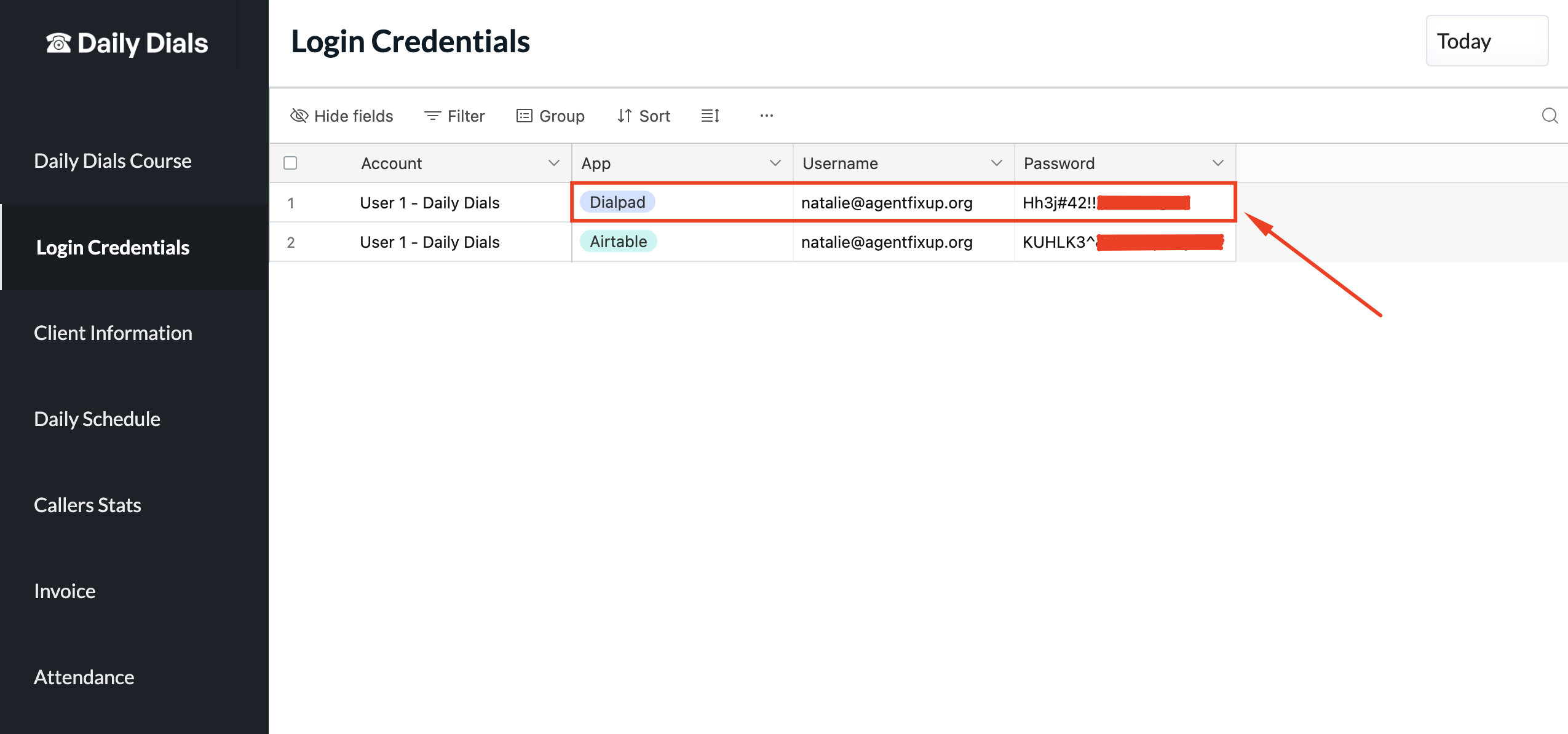
Once you have downloaded Dialpad on to your computer, please log in to your dialpad account with the login credentials found in your dashboard. They can be found in the section below.
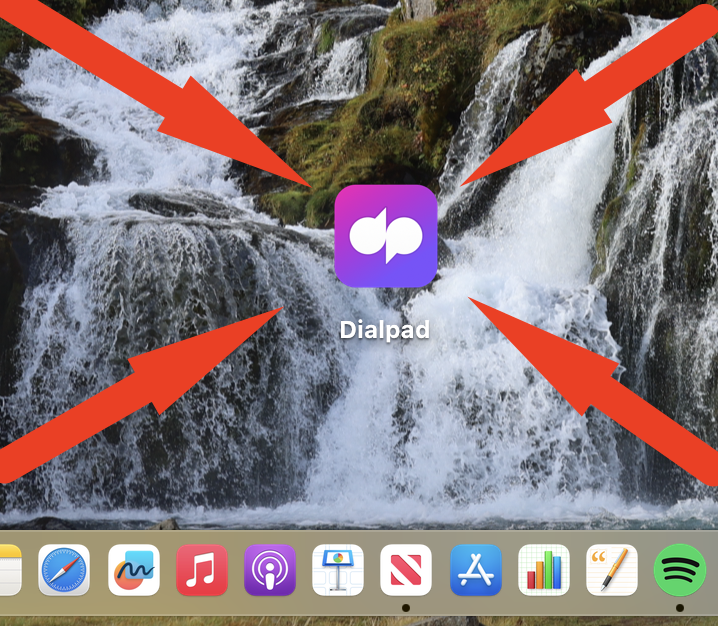

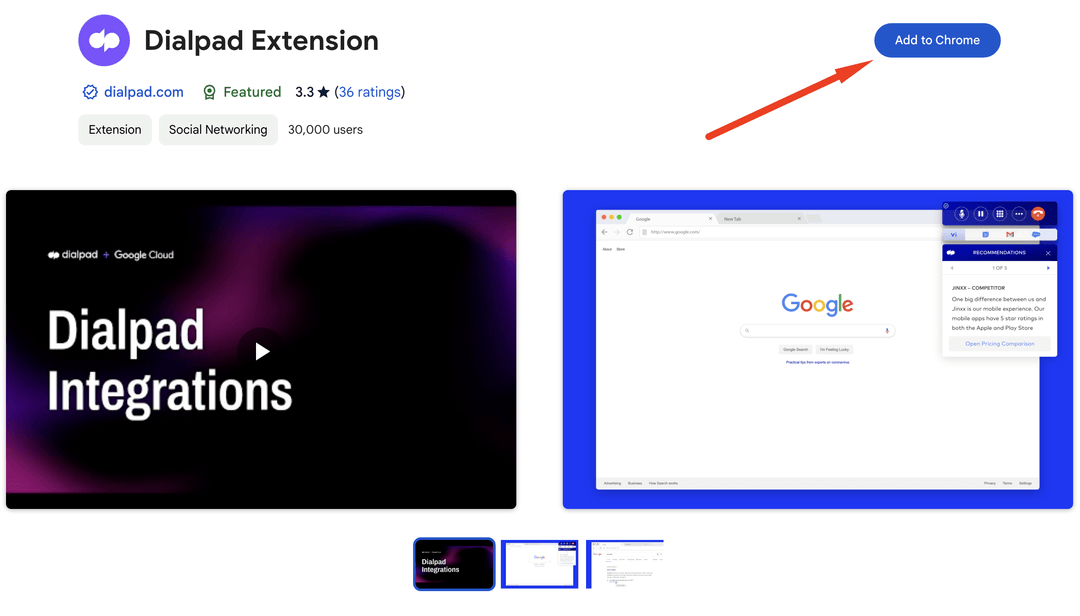
Step 3: Next, only after you have logged in to the DailPad Web App, please visit the Chrome Web Store and download the Dialpad Chrome extension.
You HAVE to be using Google Chrome browser. You also HAVE to use the exact same Chrome profile each time you call because the Chrome extension is linked to a specific Chrome profile.
Click on this link to download: https://chromewebstore.google.com/dialpad-extension
Click on this link to download: https://chromewebstore.google.com/dialpad-extension
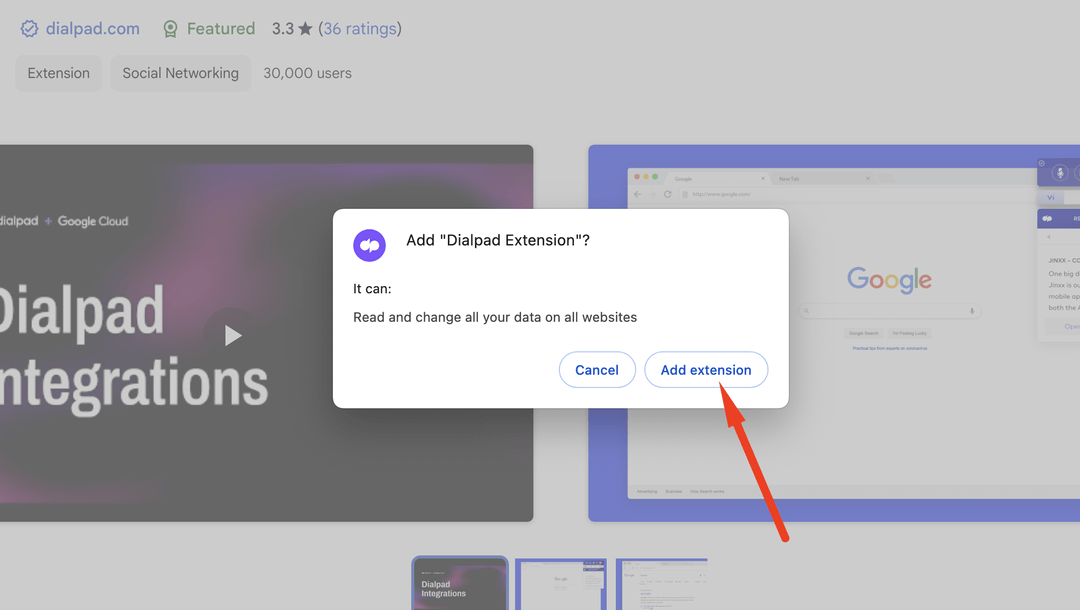
Step 4: A popup will appear, click "Add extension"
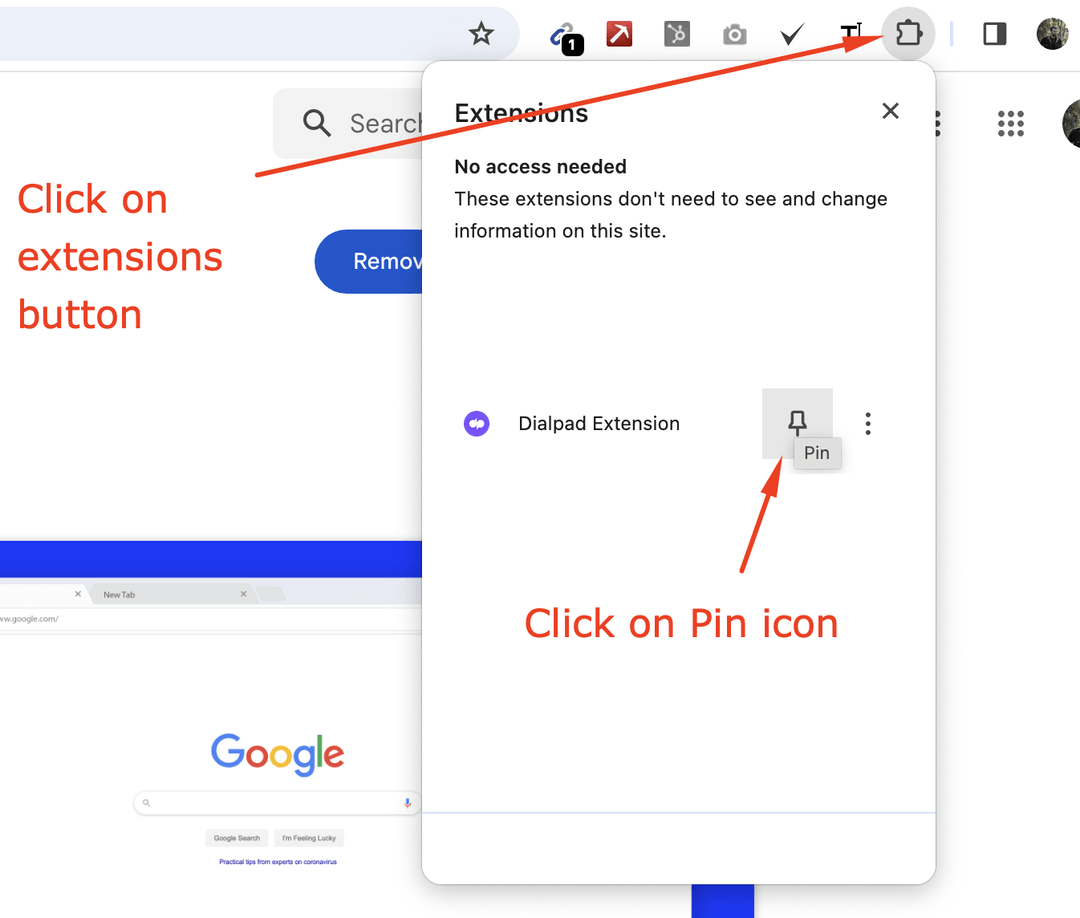
Step 5: Next, click on the extensions button and click the pin needle next to the Dialpad Extension.
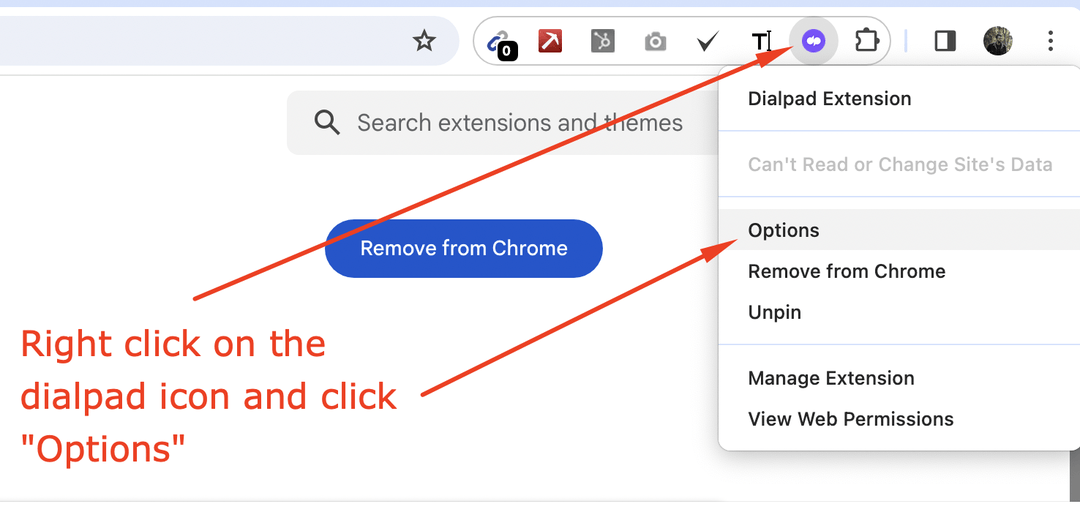
Step 6: RIGHT CLICK with your curser on the Dialpad extension so that the dropdown appears below it.
Click on the button "Options".
Step 7: A new window should open in Chrome.
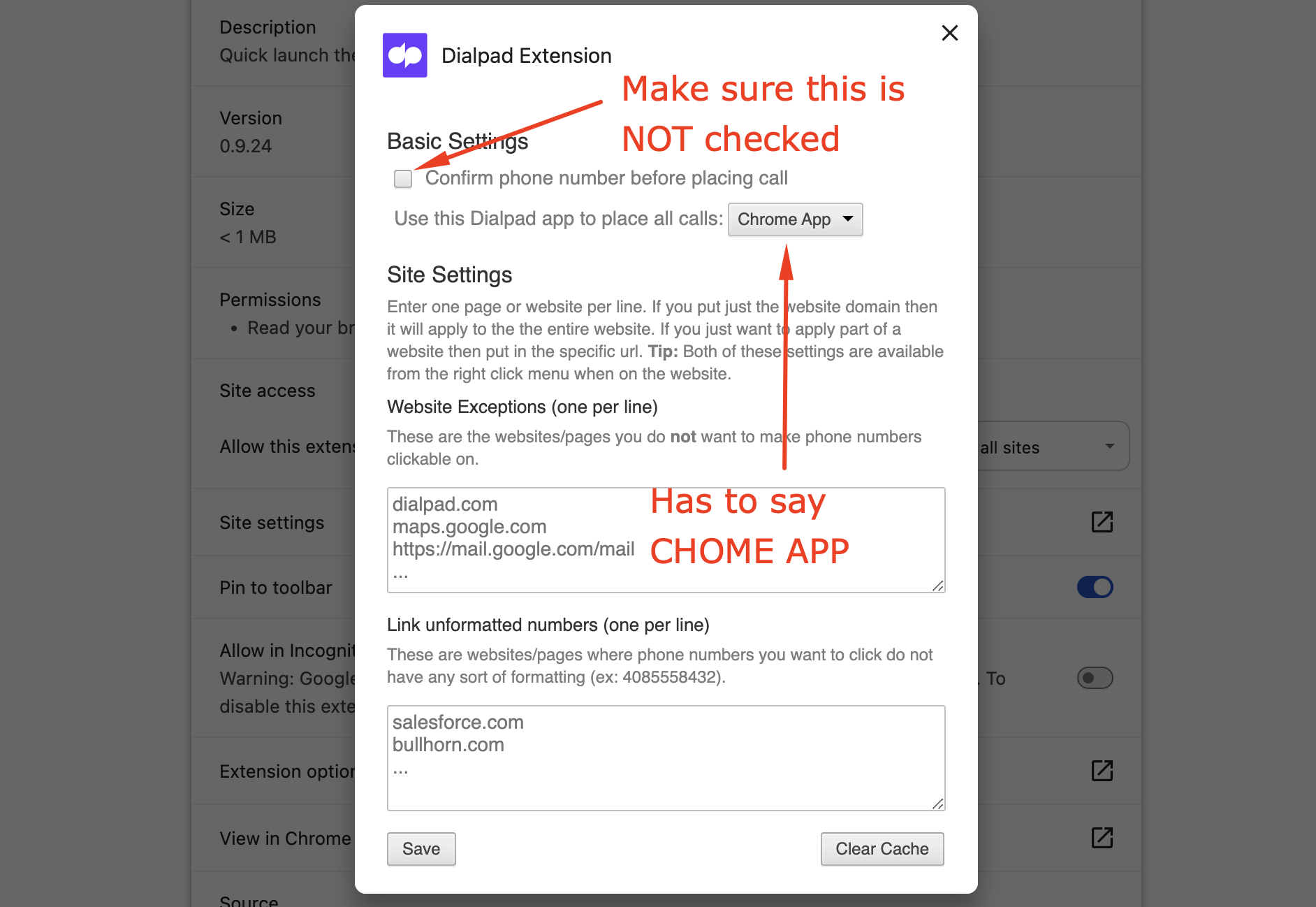
Follow the screenshot instructions below by making sure the checkbox for "Confirm phone number before placing call" is NOT checked.
Next, click on the dropdown and select from the dropdown "Chrome App".
After clicking "Chrome App", at the bottom of the popup, click "Save", as seen in the image below.
Next, click on the dropdown and select from the dropdown "Chrome App".
After clicking "Chrome App", at the bottom of the popup, click "Save", as seen in the image below.
Step 8: Exit out of this tab.
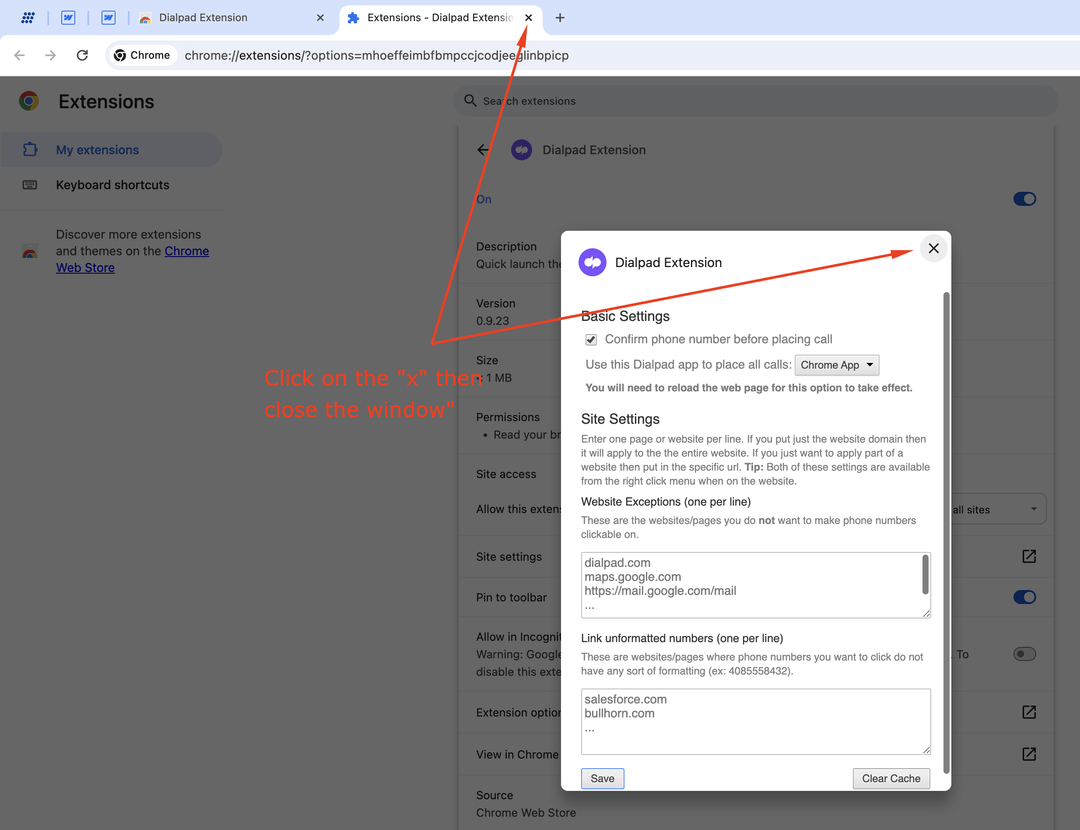
Step 9: Let's verify you set up the Dialpad extension correctly.
Thank you! Your submission has been received!
Oops! Something went wrong while submitting the form.
