
Using Mojo Dialer to make calls
Step 1: Go to your user account and click the "Login Credentials" button on the left.
Here you will find the login credentials to Mojo Dialer.

Copy/paste the username and password into mojo and log in ↓↓

Step 2: After logging in, on the left, click on "Data & Dialer"

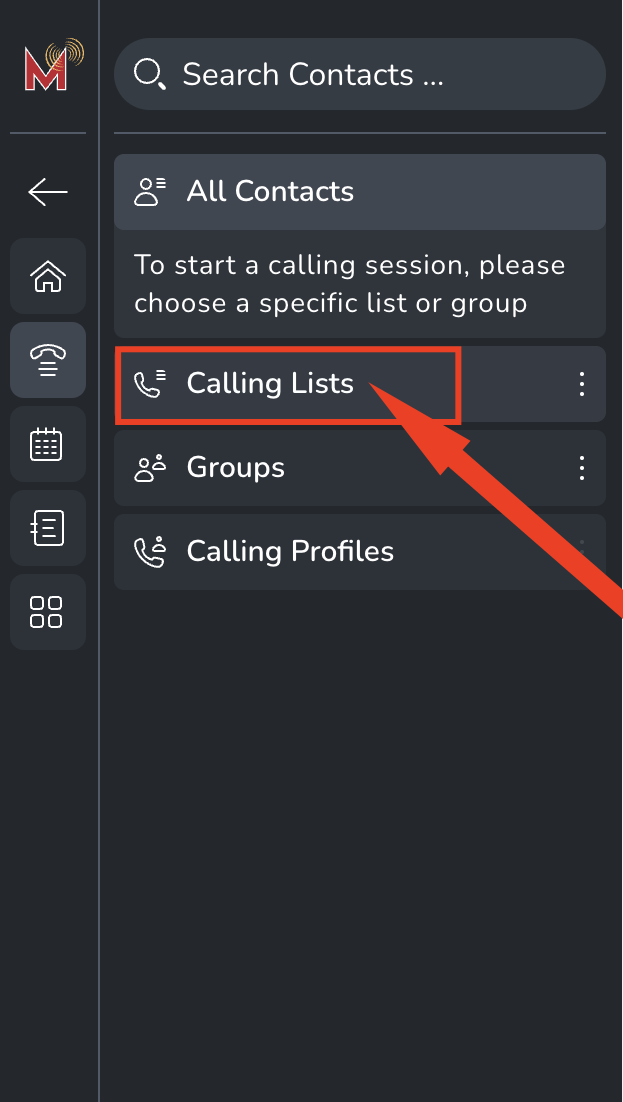
Step 3: Next, on the left, click on calling lists so all of the calling lists drop down.
You will find all of the clients to call for that you can choose from.

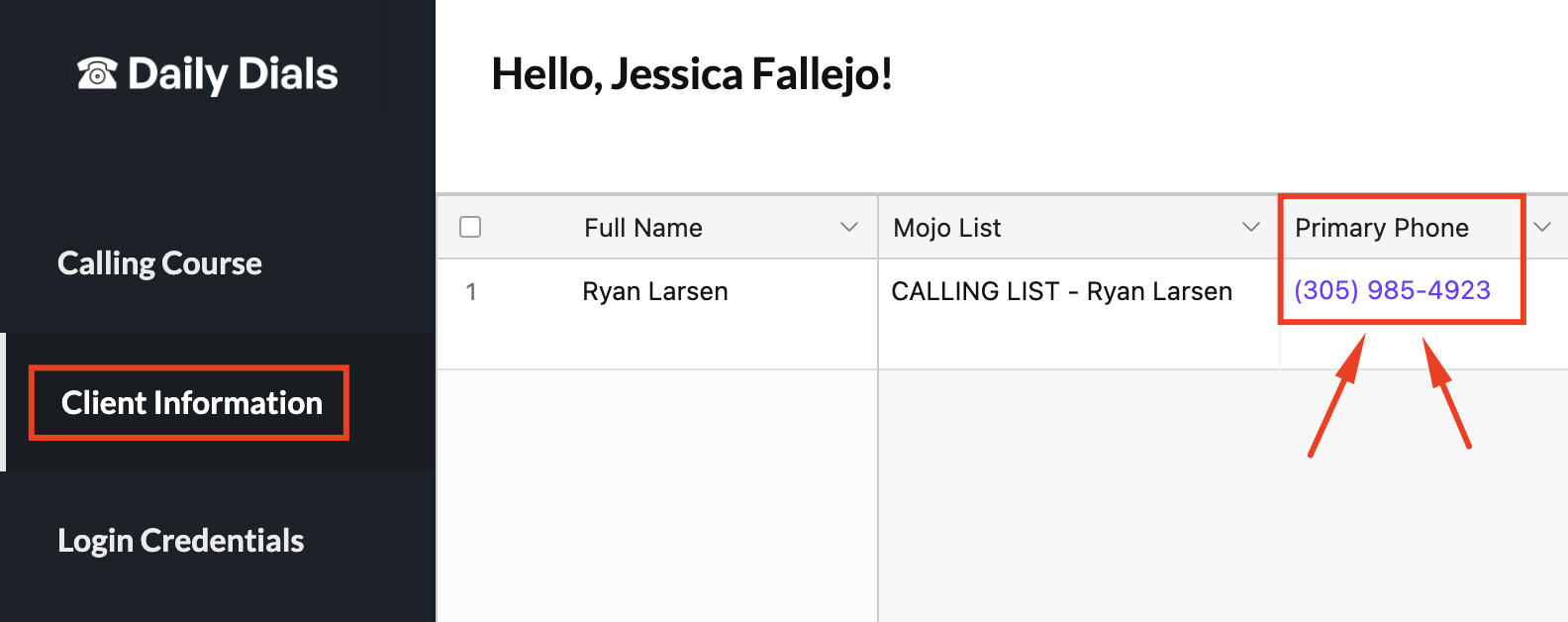
Step 4: Find the correct number to use in DialPad under the client information tab
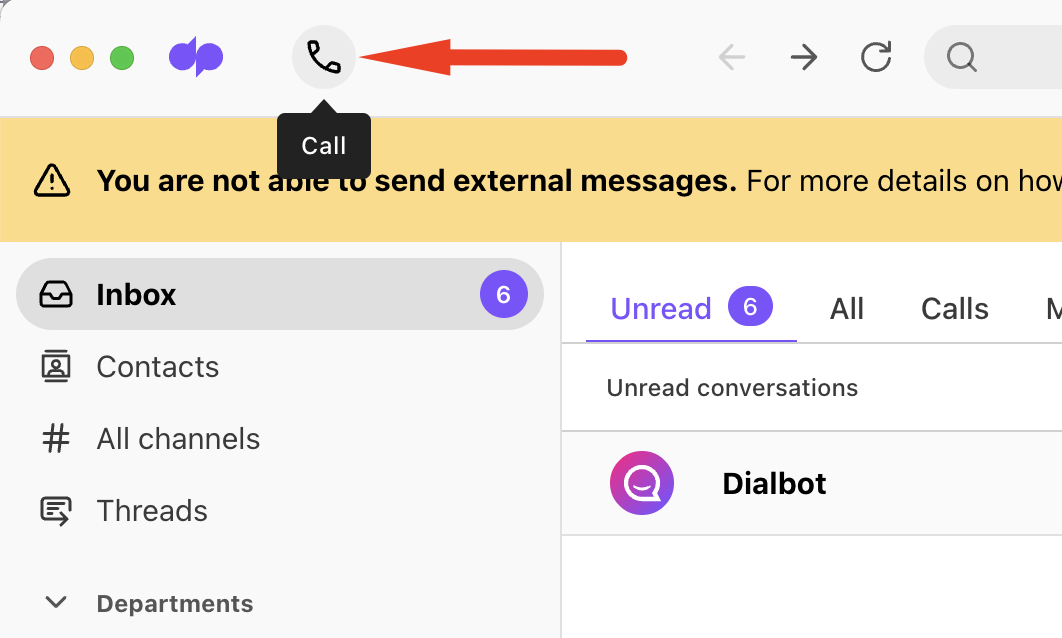
Go to the dialpad app and click the phone icon in the top left.
Click "Change"

Find the clients number you need to call for on your schedule and select the number from the dropdown.

Take a screenshot of the number we are using in DialPad for our client.

Ensure you still have your clients calling list selected
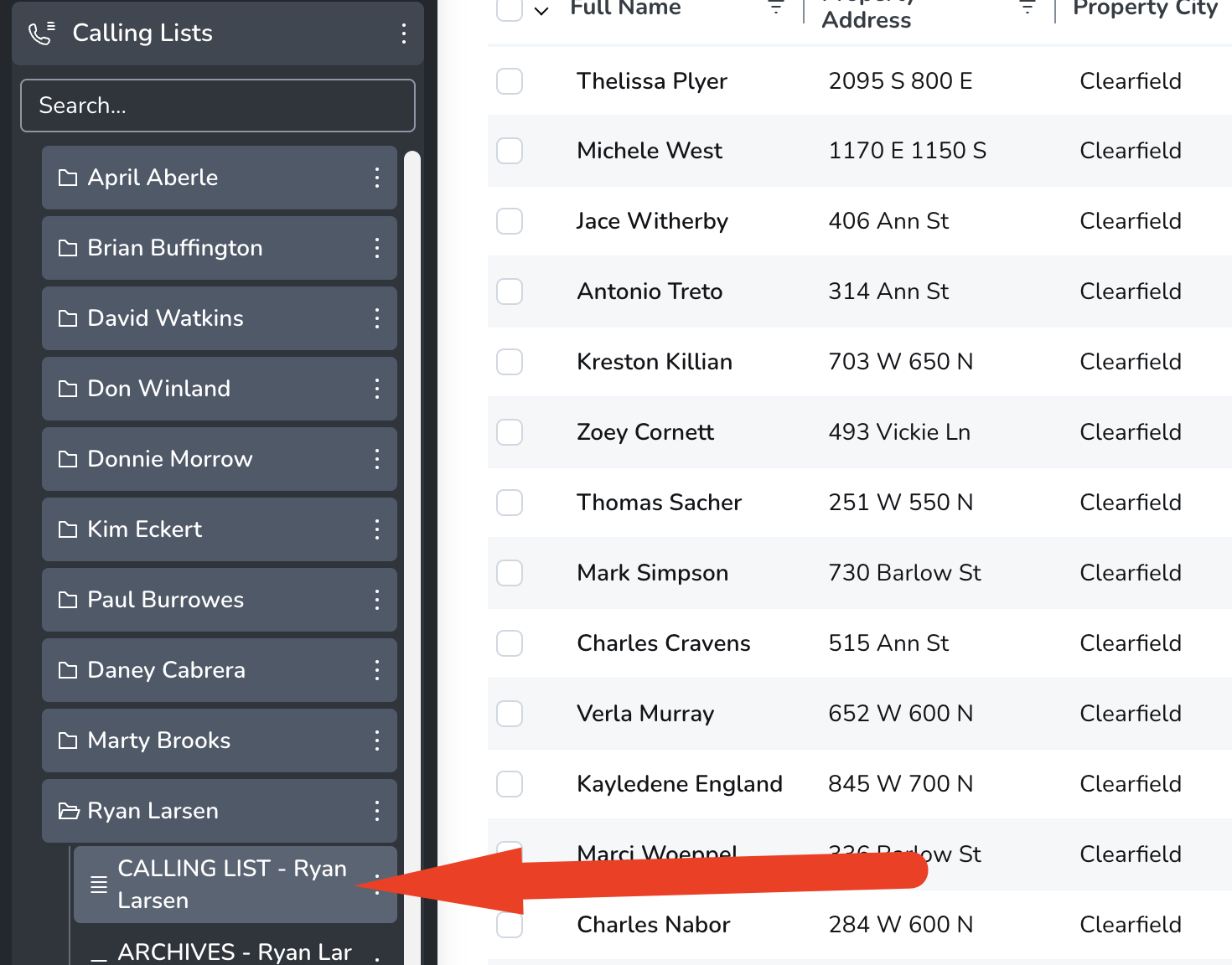
Take a screenshot showing the correct Mojo list we will be calling; make sure it's selected (you have to click on it)!
^ Your chrome window with Mojo should be 75% of your screen
and...
On the right side of the screenshot, make sure it shows the correct script for our client that we are calling for.
^ it should only take up roughly 25% of our screen.
^ Your chrome window with Mojo should be 75% of your screen
and...
On the right side of the screenshot, make sure it shows the correct script for our client that we are calling for.
^ it should only take up roughly 25% of our screen.


Step 5: Visit your schedule for the day under "Daily Schedule" so you will find who to call for.

In order to find the calling list for that client, next click the "Client Information" tab on the left and search for the client you are supposed to call for. Take the name of their "Mojo List" find it in Mojo.

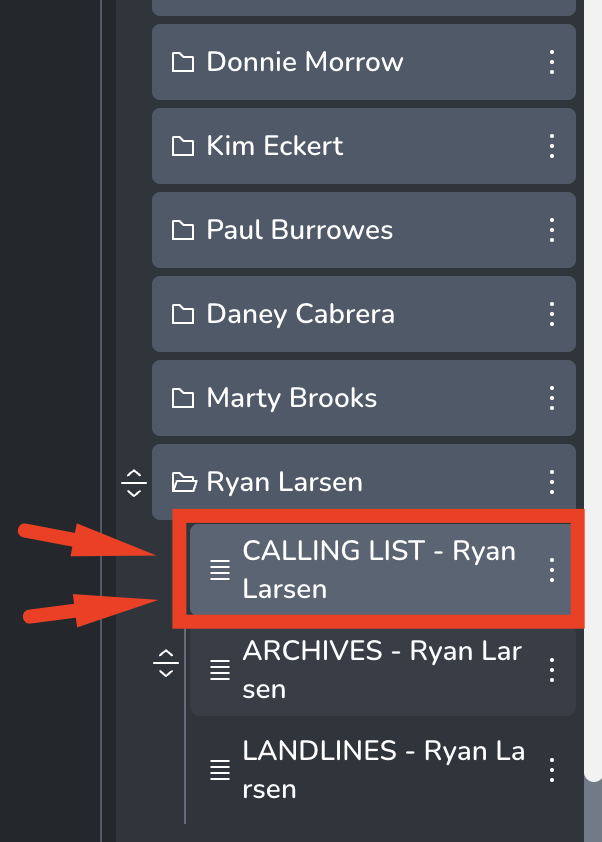
Find the client you need to be calling for on your schedule and click on their folder. Next click on their calling list from the previous step.

Step 6: Pull the script for the client and arrange your desktop.
In your dashboard, go to the "Client Information" tab.

Find the clients name you are supposed to call for.
Image 1: Find their script located in the second cell of their row. Hover your mouse over their script and click the expand button.
Image 2: The script will appear in a larger window.
Image 1: Find their script located in the second cell of their row. Hover your mouse over their script and click the expand button.
Image 2: The script will appear in a larger window.


Highlight the script and copy it to your clipboard.

Step 6: Pull the script for the client and arrange your desktop.
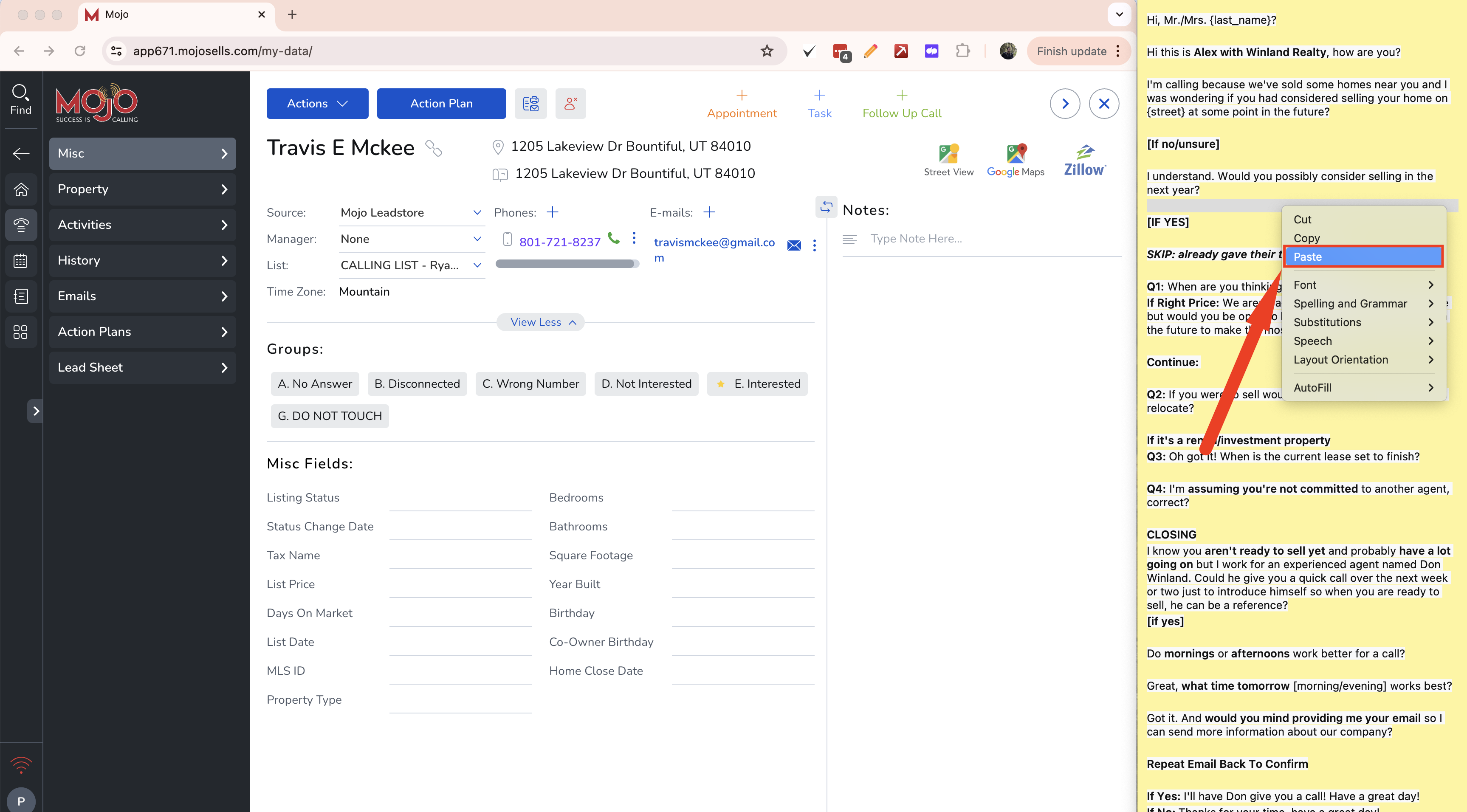
Click on the first record in your calling list so that it expands to fill the whole screen


Make your desktop so that Mojo Dialer takes up 2/3 of the screen and your notepad takes up 1/3 of your screen.

Paste the script (that you copied in the last step) to your notes pad.
Step 7: To call someone, click the purple phone number. It will make a call using DialPad.

A little popup for DialPad should appear in purple ↓↓
This is where you can hang up calls if they don't pick up.
This is where you can hang up calls if they don't pick up.

Step 8: After the call finishes, you can select the following:
A. No Answer: If they do not answer the phone call within the first 5/6 rings
B. Disconnected: If the number is not working
C. Wrong Number: If we reached the wrong person
D. Not Interested: If the homeowner is not interested in selling
E. Interested: If the homeowner is considering selling
B. Disconnected: If the number is not working
C. Wrong Number: If we reached the wrong person
D. Not Interested: If the homeowner is not interested in selling
E. Interested: If the homeowner is considering selling

Step 9: After the call finishes, you can select the following:
If you get a lead, type brief notes from your call into the notes section then click post.

Step 10: After the call finishes and you select your group, to move to the next record click this right arrow at the top.

